Complete Market Making Tool Guide #
The Market Making Tool manages token trades, trading wallets, gas, fund collection, and order-response strategies on EVM chains. It provides four modes: Custom, Pump Only, Dump Only, and Eat Orders. Tasks run inside the browser. Closing the page, putting the computer to sleep, or allowing the browser to suspend the page stops monitoring and trading.
We recommend desktop Google Chrome with MetaMask. Start with small amounts and use Monitor Only before allowing live eat-order trades. Private keys and wallet funds are sensitive; operate only on a trusted device.
Join the Fatsale official community for support and feedback.
1. Page overview #
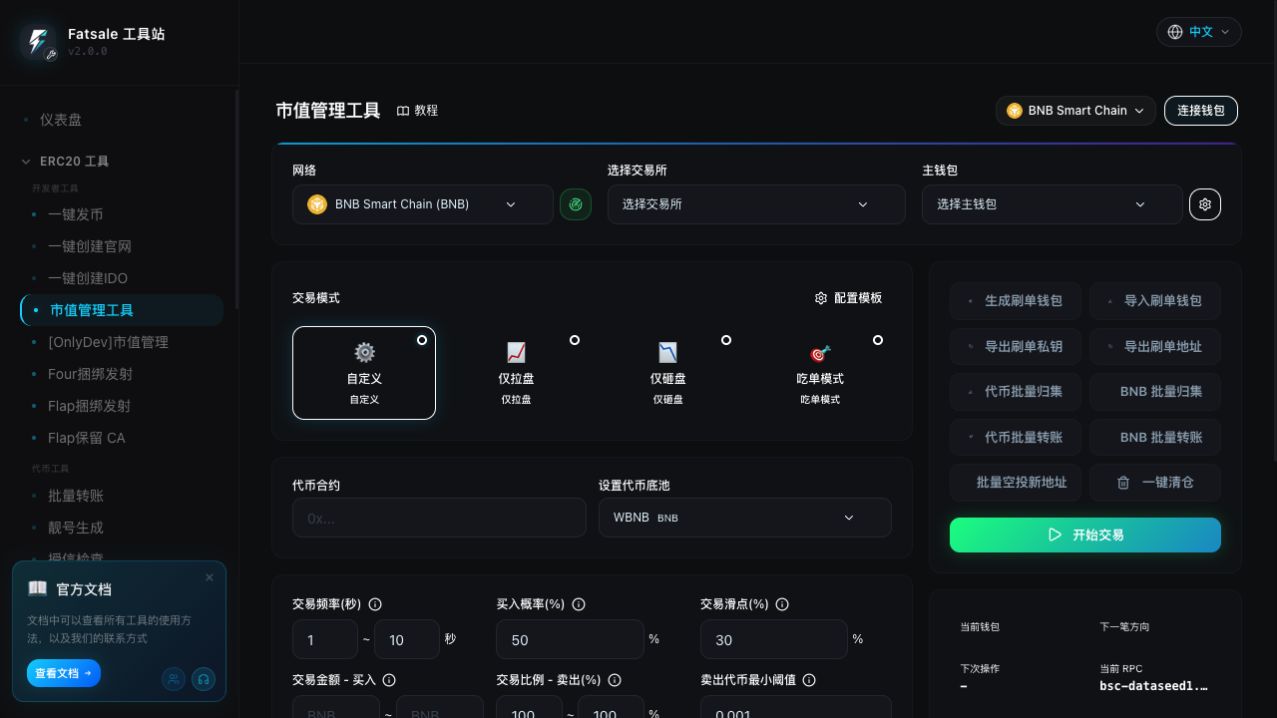
The page has six main areas:
- Network, exchange, and main wallet define where and from which wallet the task operates.
- Trading mode selects Custom, Pump Only, Dump Only, or Eat Orders.
- Token and base pool identify the target token and its real liquidity pair.
- Trading parameters configure amount, ratio, interval, slippage, gas, RPC, and risk controls.
- Trading wallets and batch actions generate, import, fund, collect, or liquidate wallets.
- Task status and logs show the current action, scan range, budget, and transaction results.
Configuration Templates can save reusable strategies. Templates do not store private keys, wallet addresses, custom RPC URLs, logs, or runtime state. Always recheck the network, token, exchange, and wallet scope after applying a template.
2. Preparation #
Select a network #
Choose the chain where the token is actually deployed. Native coin labels change with the network: BSC uses BNB, while Ethereum and Base use ETH.
- Ensure the wallet extension is connected to the same chain.
- Identical contract addresses on different chains do not represent the same token.
- An RPC whose Chain ID differs from the selected network is rejected.
Select an exchange #
The exchange determines the quote source, approval spender, and transaction method. Choose the venue where the token has real liquidity.
- Normal trading supports the V2, Pancake V3, Four, Flap, and other methods shown on the page.
- Eat Orders is enabled only for venues where the tool can discover a trade source. A venue without a Factory or discoverable pool cannot be monitored.
- Pancake V3, Four, and Flap eat-order support follows the network restrictions shown in the interface.
Import and select the main wallet #
The main wallet can:
- top up native gas for trading wallets;
- refill tokens for response sells;
- fund batch transfers and airdrops;
- receive collected tokens or native coins;
- pay transaction fees for some operations.
The imported private key must match the selected main-wallet address. Before starting, the tool checks network, RPC, private-key match, balances, quotes, gas, simulation, and budgets. Hard errors block startup.
Enter the token and base pool #
Enter the ERC20 contract and wait for the name, symbol, decimals, and balances to load. Then select the token’s real base pool, such as WBNB, USDT, or USDC.
A wrong base pool can cause missing Pair errors, failed quotes, or an invalid swap path. A non-native base pool may require router conversion from native coin.
Prepare trading wallets #
Generate new wallets or import one private key per line. When generating wallets, distinguish Append from Overwrite. Overwrite replaces the current list, so export a backup first.
Prepare enough funds for:
- buy wallets: trade input plus gas;
- sell wallets: tokens plus gas for approval and swap;
- main wallet: refill funds, transaction gas, and a safety reserve.
3. Choosing a trading mode #
| Mode | Behavior | Typical use | Main risk |
|---|---|---|---|
| Custom | Randomly chooses buy or sell using Buy Probability | Maintain two-way activity | Probability is sampled per trade and may not match the configured ratio over a short run |
| Pump Only | Buys every round | Create buy-side activity | Continuously spends native coin; use a clear budget |
| Dump Only | Sells every round | Gradually distribute token inventory | Wallets without tokens cannot continue selling |
| Eat Orders | Scans external trades and sends a reverse response | React to actual external volume | Log-capable RPCs, sizing, refills, and budgets require careful limits |
4. Custom mode #
Custom mode independently samples the buy or sell direction before each trade.
| Setting | Usage and example |
|---|---|
| Transaction interval | 10-20 seconds means a new delay is sampled after every confirmed trade. Confirmation and RPC time are additional. |
| Buy probability | 70% gives each mixed-mode round a 70% buy chance and 30% sell chance. Ten rounds do not guarantee exactly seven buys. |
| Transaction slippage | At 1%, a quote for 10,000 tokens accepts roughly 9,900 or more. Worse execution reverts. Higher values increase execution probability but allow worse prices and greater sandwich exposure. |
| Buy amount range | 0.01-0.02 BNB samples a new input, such as 0.0137 BNB, for each buy. Gas is not included. |
| Sell ratio | 10%-20% with a 50,000-token wallet and a sampled 12% sells 6,000 tokens. |
| Minimum token threshold | At 5,000 tokens, a wallet holding 3,000 is forced to buy; a wallet holding 8,000 follows Buy Probability. This is inventory steering, not a minimum order size. |
Start with small amounts and a moderate probability. Observe several receipts, gas costs, quotes, and wallet balance changes. Stop the task before changing settings; a running task uses its startup snapshot.
5. Pump Only mode #
Pump Only ignores Buy Probability and executes only buys.
Focus on:
- Transaction interval for pacing;
- Buy amount range for native coin spent per trade;
- Transaction slippage for quote protection;
- Native balance for both trade input and gas;
- MEV protection where supported.
Example: with 30-60 seconds and 0.005-0.01 BNB, each selected wallet buys with a newly sampled amount after a 30-60 second post-confirmation delay.
Estimate the maximum hourly cost as maximum trades per hour multiplied by maximum trade input, plus gas. Do not judge risk by the single-trade amount alone.
6. Dump Only mode #
Dump Only executes only sells; Buy Probability is ignored.
Focus on the sell ratio, interval, slippage, and enough native gas for both approval and swap. With 100,000 tokens and a 5%-10% range, a sampled 8% sells 8,000. The next round recalculates from the new balance.
A 100% sell ratio is not the same as the batch Liquidate action. Dump Only sells over time through the task loop; Liquidate is a separate batch workflow.
7. Eat Orders mode #
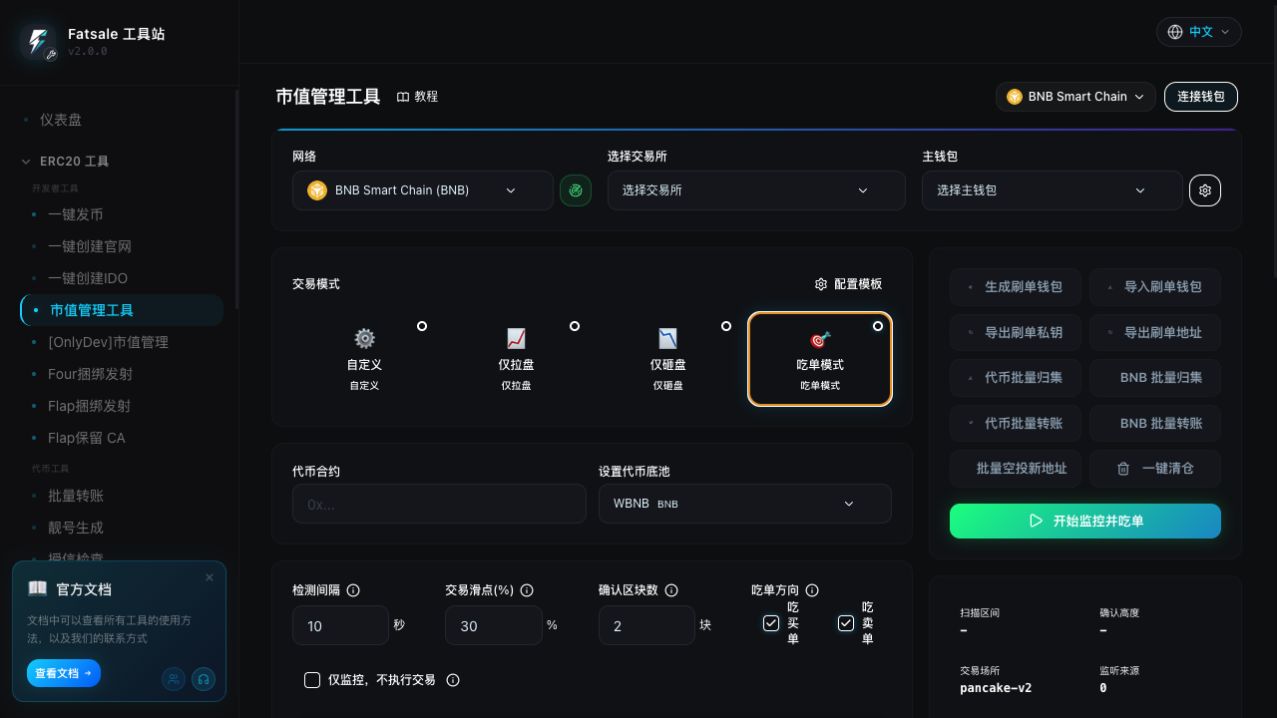
Eat Orders is not pending-transaction frontrunning. It scans events from confirmed blocks at the configured interval, recognizes external buys and sells, deduplicates them, and merges same-direction trades in one window into one reverse response.
If the interval is 10 seconds and 11 external buys are found, the tool totals all 11 trades and calculates one response sell. Overlapping scans do not process the same event twice, and hashes submitted by the current tool session are ignored to prevent self-trigger loops.
Common scan settings #
| Setting | Description and example |
|---|---|
| Scan interval | 10 seconds scans confirmed blocks after the previous cursor and merges matching orders. Shorter reacts faster but uses more RPC requests. |
| Transaction slippage | Applies to the final response swap. Too small may revert after price movement; too large permits worse execution. |
| Confirmation blocks | With 3 confirmations and latest block 1,000, the scan ends at 997. Blocks 998-1,000 wait for later rounds. |
| Eat side | Enable Eat Buys, Eat Sells, or both. |
| Monitor Only | Scans, deduplicates, merges, applies thresholds and caps, and calculates quotes, but does not select wallets, refill, approve, sign, or submit. |
Eat Buys: sell after external buys #
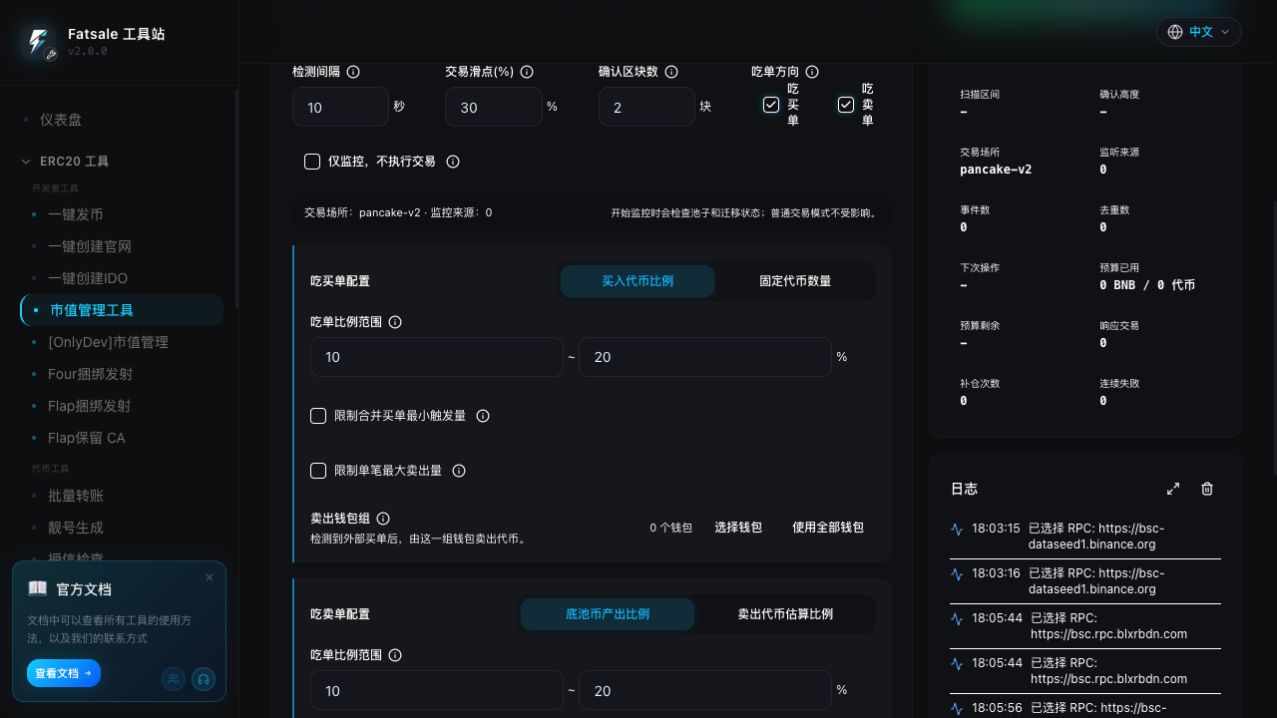
Buy Token Percentage: external buys total 10,000 tokens and the range is 10%-20%. If 16.23% is sampled, the pre-cap sell is 1,623 tokens.
Fixed Token Amount: with 1,000-2,000 tokens, the tool samples in that range whether external buyers purchased 5,000 or 100,000. Because it ignores external size, use a single-trade maximum.
Minimum merged buy trigger: at 5,000 tokens, a total of 4,999 is logged and skipped; 5,000 or more proceeds to sizing. The threshold can also use base-coin value.
Maximum sell per response: if sizing calculates 2,500 tokens and the cap is 1,000, the final sell is 1,000. A calculated 800 remains 800. The cap can use token amount or native-coin value.
Sell wallet group: only wallets in this group can send response sells. With balance priority enabled, the tool first searches for a wallet already holding enough tokens, then considers a main-wallet refill.
Eat Sells: buy after external sells #
Base-output percentage: external sellers receive 1 BNB and the range is 10%-20%. At a sampled 15%, the tool uses about 0.15 BNB for the buyback.
Sold-token estimate percentage: external sellers sold 10,000 tokens. At a sampled 12%, the target is 1,200 tokens and the selected venue quotes the required native input.
The minimum trigger skips small merged sells. The single-trade maximum caps either the target token amount or maximum BNB/ETH spent. The Buy Wallet Group limits which wallets can submit the response.
Main-wallet refill protection #
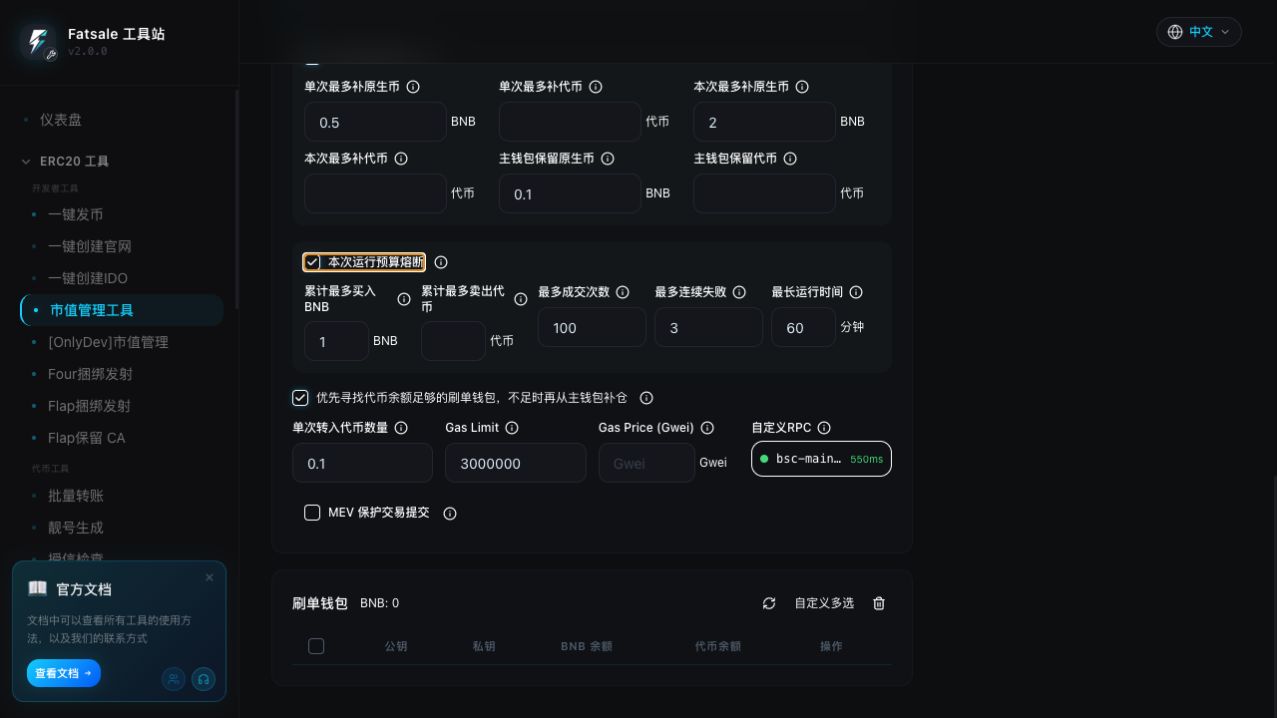
| Setting | Effect |
|---|---|
| Max native per refill | If the shortage is 0.08 and the cap is 0.05, the refill is blocked instead of partially sending 0.05. |
| Max token per refill | Maximum token amount for one response refill. |
| Max native refill per session | Cumulative native refill budget. After 0.16 of a 0.2 budget, a new 0.05 refill is blocked before transfer. |
| Max token refill per session | Cumulative token refill budget for the current run. |
| Main native reserve | Minimum native balance that must remain in the main wallet, in addition to required transfer gas. |
| Main token reserve | Minimum token balance that must remain after automatic refills. |
Every configured limit must pass. Logs distinguish insufficient main balance, per-refill cap, session cap, and reserve protection.
Session budget circuit breaker #
| Setting | Stop condition |
|---|---|
| Max native bought | Stops before a buy that would push cumulative native input over budget. |
| Max token sold | Stops before a sell that would push cumulative token output over budget. |
| Max trades | Stops after the configured number of confirmed response trades. |
| Max consecutive failures | Stops after uninterrupted failures reach the limit; one success resets the counter. |
| Maximum runtime | Stops when elapsed runtime reaches the configured minutes. |
A single-trade cap shrinks an amount. A session budget crossing stops the task before submission.
Recommended Monitor Only workflow #
- Enable Monitor Only and the desired sides.
- Run for several scan windows.
- Check external order count, aggregate amount, sampled ratio, pre-cap amount, applied cap, and final amount in detailed logs.
- Stop monitoring, disable Monitor Only, and start live trading with small limits only after the calculations look correct.
8. Gas, RPC, and MEV #
Gas #
| Setting | Usage |
|---|---|
| Single gas top-up amount | Native coin transferred when a trading wallet lacks gas. At 0.003 BNB, the main wallet sends 0.003 BNB before the swap. |
| Gas Limit | Maximum gas allowed. A 300,000 limit with 180,000 used charges only the used amount; too low causes out-of-gas failure. |
| Gas Price | Leave blank for the RPC recommendation. Raising it may improve inclusion speed but directly increases fees. |
RPC pools #
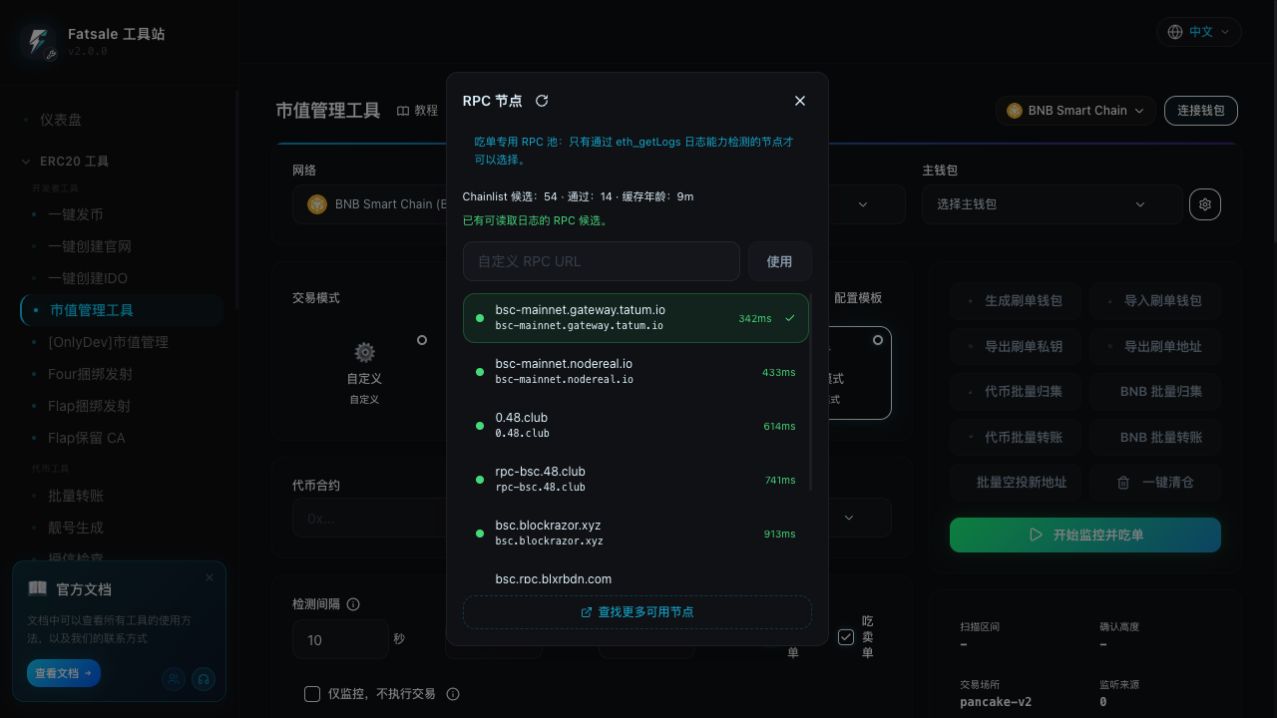
- Normal trading uses the standard trading pool, which may also contain eat-order-capable nodes.
- Eat Orders can use only nodes that pass an
eth_getLogscapability probe; ordinary nodes cannot enter the eat-order pool without passing it. - On 429, range limit, or transport errors, the tool reduces the scan chunk or switches nodes and safely retries the whole window.
- If all public log-capable nodes fail, configure a managed endpoint from providers such as Alchemy, QuickNode, Ankr, or NodeReal.
MEV protection #
Where supported, MEV protection sends only DEX swaps through private endpoints. Approvals, refills, transfers, reads, quotes, and scans continue through normal RPCs.
If all protection endpoints fail, the task pauses and asks whether to retry, downgrade this trade, downgrade the remainder of the task, or stop. It does not silently broadcast publicly. Protection reduces risk but cannot guarantee that a trade will never be sandwiched.
9. Wallet and batch actions #
| Action | Description |
|---|---|
| Generate wallets | Create new trading wallets. Overwrite replaces the existing list; export keys first. |
| Import wallets | Import one private key per line and verify the resulting addresses and network. |
| Export keys/addresses | Private-key exports are sensitive backups. Never send them to support staff or community members. |
| Collect tokens | Transfer trading-wallet tokens to the main wallet. Success is counted only after a successful receipt. |
| Collect native coin | Collect the spendable balance after gas and safety reserve; wallets unable to cover gas are skipped. |
| Batch transfer | Distribute a fixed token or native amount from the main wallet to selected wallets. |
| Airdrop to new addresses | Generate addresses and distribute random amounts with batch-size and consumption controls. |
| Liquidate | Sell token balances from selected wallets through the current venue. This is separate from Dump Only. |
One wallet can have only one submitting fund operation at a time. If a wallet is reported busy, wait for its current transaction to settle. Do not run overlapping tasks against the same wallets in multiple tabs.
10. Status and logs #
The status panel changes by task:
- normal trading: current wallet, next direction, countdown, RPC, cumulative amounts, success/failure;
- monitor-only: scan range, confirmed height, venue, source count, events, deduplication, next scan;
- live eat orders: budgets, response trades, refill count, consecutive failures;
- batch actions: progress, total, success, failure, skipped, current wallet.
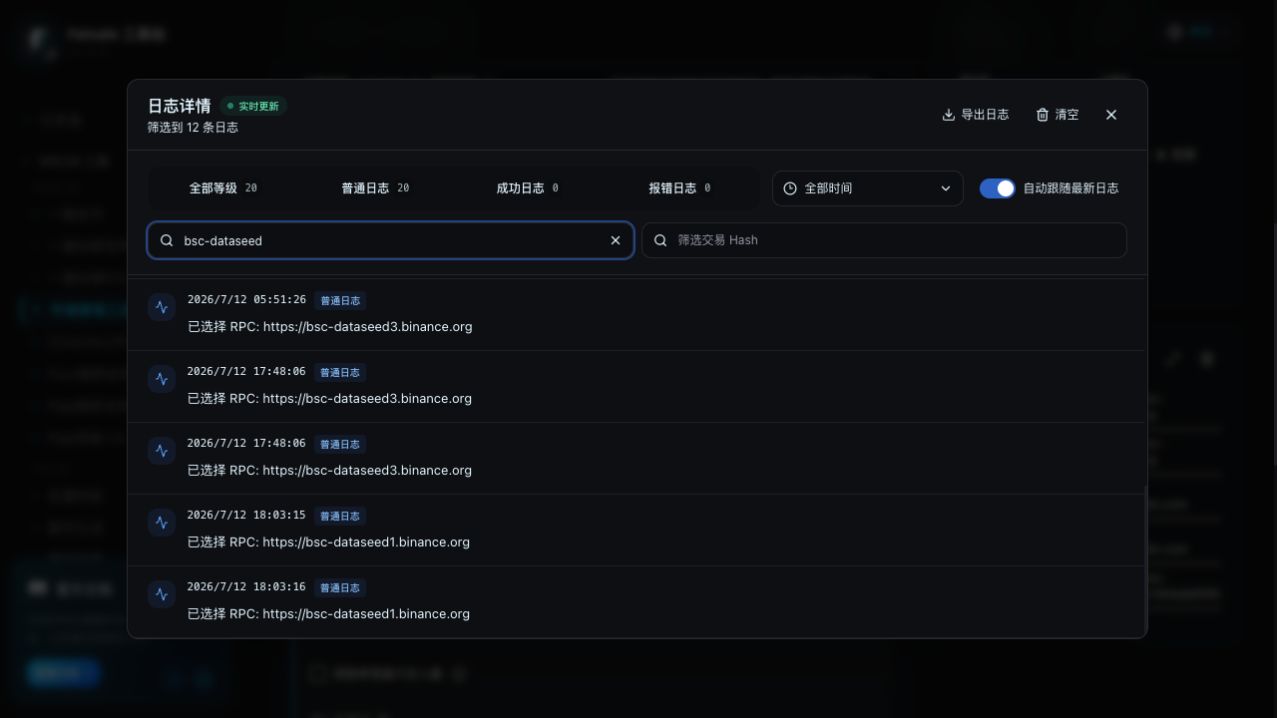
Detailed Logs supports level and time filters, content and transaction-hash search, real-time append, auto-follow, older-page loading, and export. Displayed addresses and hashes may be shortened, but copy buttons copy the complete value.
Double-click a compact log row to open Detailed Logs and highlight that record. For failed trades, inspect simulation, balance, allowance, refill, hash, receipt, and reconciliation details.
11. Recovery and multiple tabs #
- Refresh restores non-sensitive settings, cursors, budgets, and transaction state, but the task remains paused.
- Submitted or confirming hashes are reconciled on-chain before the user can continue.
- Tabs lock resources by chain and wallet. A second tab with overlapping wallets becomes read-only.
- After the owner tab is lost, takeover becomes available only after pending hashes, balances, allowances, budgets, and cursors are checked again.
12. Recommended workflow #
- Select network, exchange, main wallet, token, and the correct base pool.
- Import a small number of trading wallets and refresh balances.
- Select a mode and start with small amounts, conservative slippage, and explicit gas settings.
- For Eat Orders, begin in Monitor Only and configure minimum triggers, single-trade caps, refill protection, and session circuit breakers.
- Select a stable RPC; optionally enable MEV protection on BSC or Ethereum.
- Review all preflight results and risk confirmations.
- Monitor the status panel, detailed logs, and block explorer together.
- Stop the task and confirm that no transaction is pending before changing settings.
13. FAQ #
Can I close the page? #
No. The task runs in the browser. Refresh restores it only in a paused state.
Why did my changed settings not apply? #
A running task uses its startup snapshot. Stop it, change the values, and start again.
Why did a simple operation switch RPCs? #
Balance, gas, quote, simulation, submission, and receipt requests all use RPCs. A timeout or rate limit can switch the standard pool. The log usually means that request failed, not that the endpoint is permanently unusable.
Why does Eat Orders keep failing to scan? #
The RPC may reject large eth_getLogs ranges, be rate-limited, lag behind the chain, or the venue may have no discoverable source. Check the logged start block, end block, endpoint, and error. Use a dedicated endpoint if all public nodes fail.
Why was an order detected but no trade was sent? #
Check Monitor Only, minimum trigger, single and session budgets, wallet group, wallet balance, refill protection, simulation, and task lock status.
Why did the receipt succeed but the balance not change? #
The tool reconciles actual asset changes after the receipt. A successful receipt with zero or wrong-direction asset change is marked as reconciliation failure. Copy the complete hash and inspect events and actual received amounts in a block explorer.
Are private keys safe? #
Automated trading requires local signing, but private keys remain highly sensitive. Use dedicated low-value operational wallets, never long-term storage wallets, and never share exported keys.
Legacy guide #
The legacy entry remains available, but it does not include Eat Orders, capability-tested RPC pools, detailed persistent logs, budget circuit breakers, task recovery, or MEV protection.
The legacy flow is: select chain, main wallet, exchange, token, and pool; configure interval, buy probability, buy amount, sell ratio, minimum threshold, gas, and RPC; then generate or import wallets and start. Stop and restart the task after changing settings.